Overview
The marketplace allows you as a box owner to not have to worry on always having a program ready for every class planned in you tight schedule.
After you subscribe to a program series on the marketplace you receive an ongoing stream of premade programs assigned to your classes of choice.
When receiving a new release of a series, it will be added to your gyms program templates and to the selected class type assuming the class type has been planned in the time span where the program was made for.
You will always be able to make changes to the program to make it suite you members and available equipment more, alongside reusing older releases again by planning them like any other program template.
Add subscription
To add a new subscription to a programming series start by going to the Marketplace tab in the left hand menu and click on the Shop option.
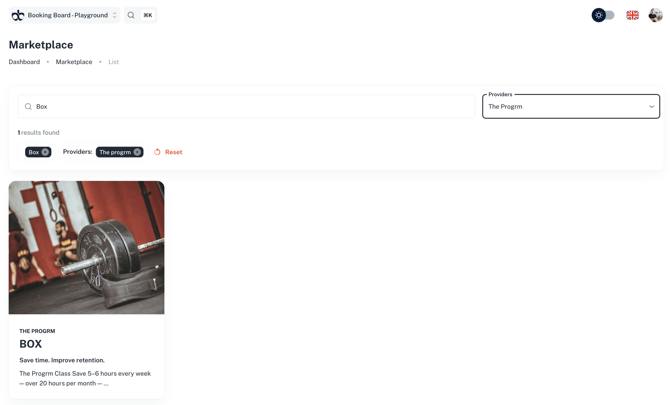
From here you can choose the program you would like to subscribe to and get a ongoing influx of new programs.
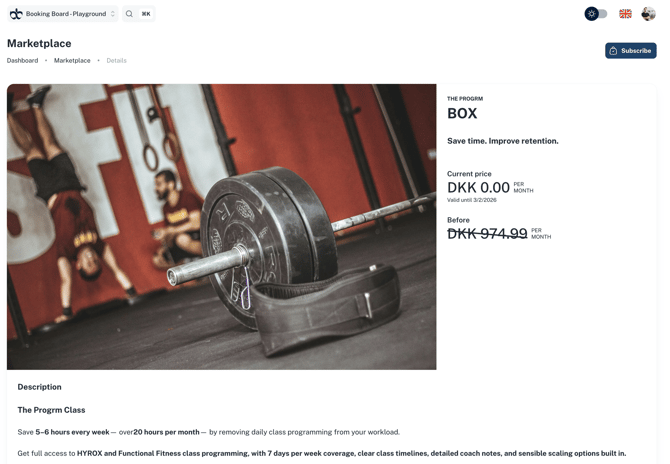
To subscribe to a series click on the card in the Shop list and thereafter the Subscribe button in the top right corner.
This action will bring you to the checkout page where you will be able to select the class types which the subscription should be released to. This can always be changed later by editing the subscription.
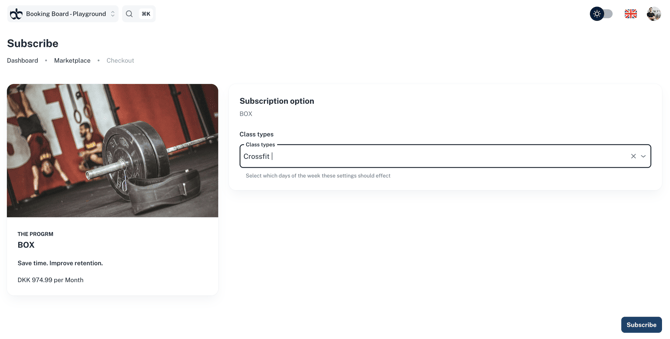
If no class types are selected then no programs will be planned, this will allow you to manually dictate when the programs should be planned. Any class where a different program already has been planned, will not be effected by the ongoing releases of any series.
Edit subscription
To edit a existing subscription start by going to the Marketplace tab in the left hand menu and click on the Subscriptions option.
From here you will be able to see all your active subscriptions alongside and cancelled but still active subscriptions.
To change the options of the subscription start by clicking on the card you would like to change and thereafter on the Change subscription button in the top right corner.
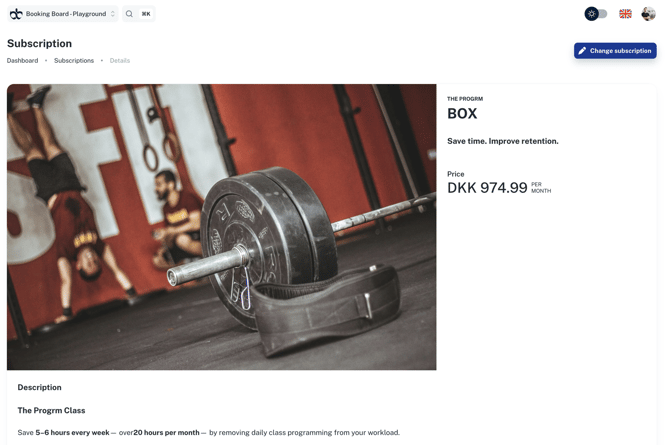
This will bring you to the subscription change page where you can change the class types that the subscription has been added to.
When changing the class types all future classes will be updated accordingly.
Cancel subscription
If you want to cancel an active subscription, start by going to the to the subscription change page by clicking on the Subscription option under Marketplace in the left hand menu, thereafter selecting the subscription you wish to cancel and clicking the Change subscription button in the top right hand corner.
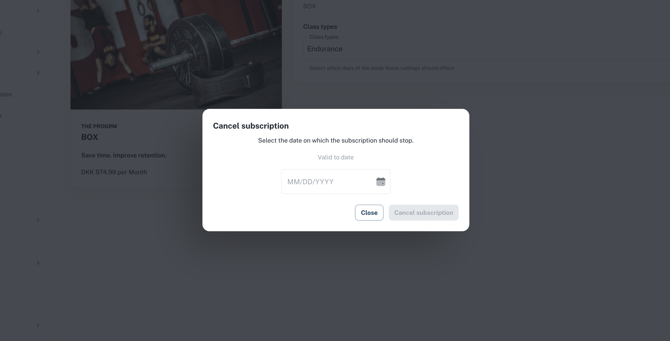
Then to start the cancellation of the selected subscription, click on the Cancel subscription button and select the date from where the subscription should end.
After submitting the cancellation request, any programs added past the cancellation date will be removed and no new releases will be added past the selected date.
Please note that it is not possible to cancel a subscription within the current active period.
Cancel cancellation of subscription
When a subscription has been canceled, you will have the possibility to cancel the cancellation up and until the cancellation takes place.
To cancel the cancellation process of a subscription start by going to the specific subscriptions details page, by clicking on the Subscription option under Marketplace in the left hand menu, and thereafter on the subscription you wish to reactivate.
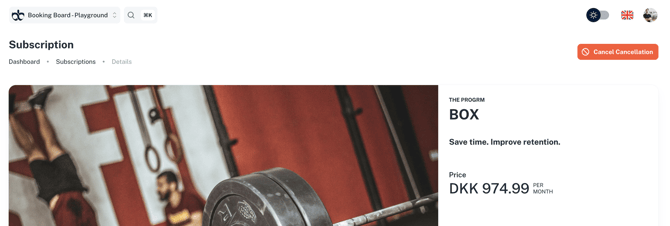
From here you should click the Cancel Cancellation button in the top right hand corner to stop the cancellation process of the subscription.
This will re-add any available releases to the program templates and planned them for their scheduled time and selected class types.